Polygon Transform
Description:
This tool is responsible for transforming polygonal type objects within the Maya viewport. It allows users to apply arithmetic operators and trigonometric functions to transform selected geometry by the evaluated amounts.
**It extends the existing transformation attribute tools by enabling arithmetic operation and trigonometric function support in both global and local space coordinates. NURBS and Curve type geometry support will be added in the future.

**Rapidly improves Maya workflow by enabling more flexible transformation with arithmetic operator and function support.
Using the tool:
-
Perform a selection on polygonal geometry by pressing the ->Create tab.
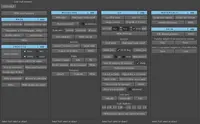
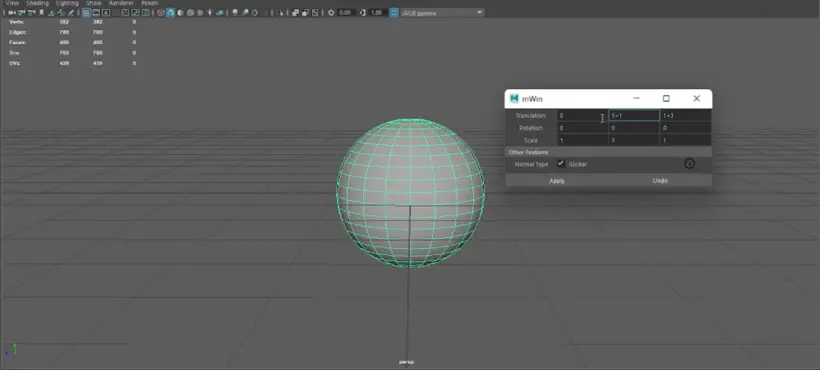
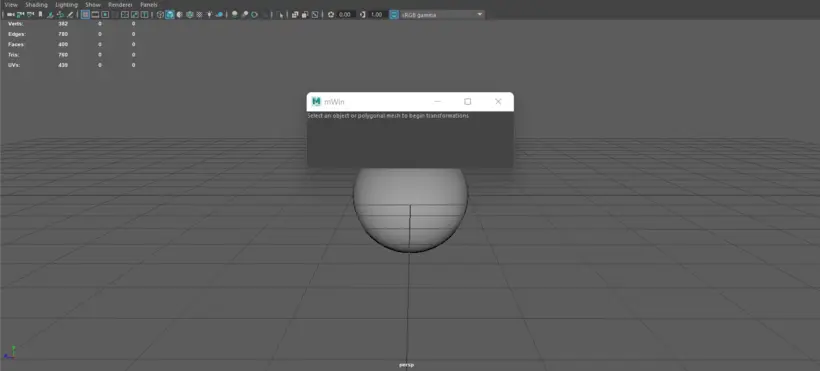
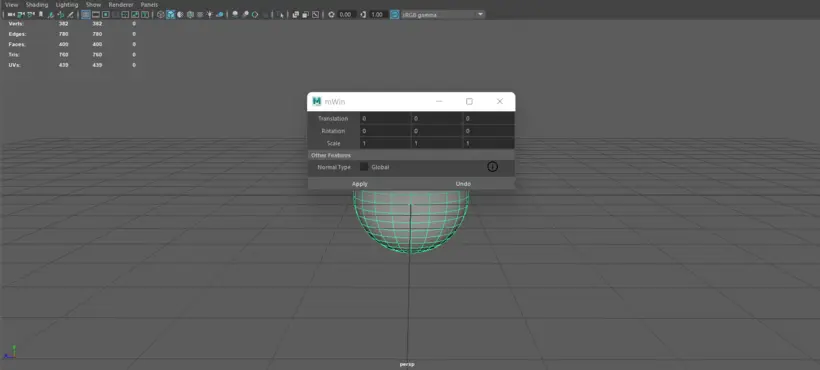
- As soon as geometry is selected, the tool window will open. See Figure 1.1
- Selecting mesh components will also trigger the separate window to appear.
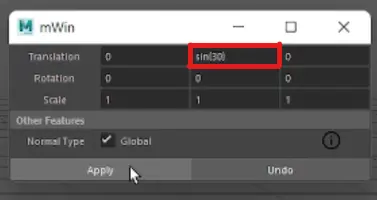
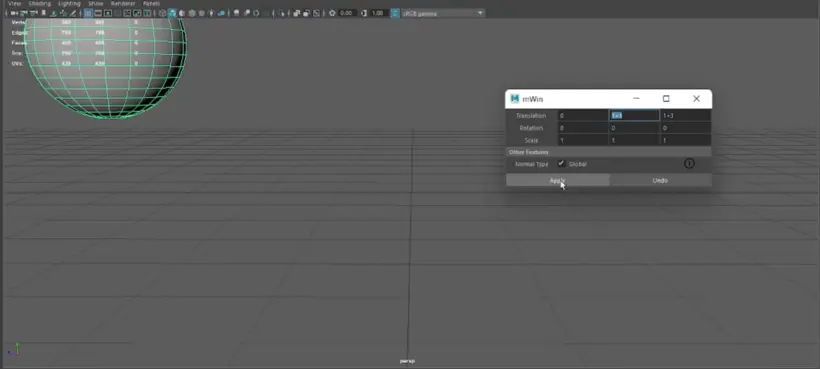
- Input transformation amounts or trigonometric functions into separate fields. Supported trigonometric functions are sin, cos and tan and values should be encapsulated using ( ) brackets. Floating point values are compatible. Each subsequent operation should be space separated. Failing to do so can cause unintended behaviour. See Figure 1.2
- For more information on the tool, the information icon supplied to the side of the Normal Type subheading will print a quick summary of the tool to the script editor terminal.
- Toggling the global checkbox specifies the transformation space to which to apply the transformations. If global is checked during a object mode selection, then the input values will lock the mesh to its world space positions. Clicking the apply button will not trigger further transformations once the mesh is transformed. If the global checkbox is unchecked, clicking the apply button will apply the relative transformation to the objects local space position and result in a transformation per button click. See Video 1.1
- In between the selection of different object components, the primary window may appear and prompt users to select polygonal geometry to see changes. The transformation window will only appear once polygonal geometry is re-selected in between component changes. See Video 1.2
Loading the tool:
- All .py files will be encapsulated within a .zip folder including any relevant supporting tutorial videos and image files associated with the script.
- To run the script seamlessly, extract all the files within the .zip folder to a local disk drive.
- When the script is run, a prompt dialog will appear on screen.
- Copy the path to the script base root directory i.e C:\\Users\FilePath\FilePath... and paste that into the input field for the prompt dialog. This will ensure that all images and supporting functions are loaded into the script without issue.
- Supporting documentation and tutorials will be within the extracted zip folder categorized into independent folders that describe their utility.

Figure 1.1 Tool On/Off window

Figure 1.2 Tool trigonometric functions
Loading the tool into Maya tutorial.
Tool example videos:
Video 1.1 Object Mode Global Transformations.
Video 1.2 Component Mode Transformations
Video 1.3 Trigonometric functions supported.
Video 1.4 Multi-trigonometric function support.
Other video tutorials:
Video 1.5 Global V Local transformations
Video 1.6 Multi-Component support.
**********************************************Note********************************************
This tool only works for polygonal mesh type objects and is incompatible with NURBS or curve type surfaces. Doing so may cause unexpected behaviour such as Maya internal errors and will not create results.
Please use the Bug System to report any bugs.
Please use the Feature Requests to give me ideas.
Please use the Support Forum if you have any questions or problems.
Please rate and review in the Review section.
Please use the Feature Requests to give me ideas.
Please use the Support Forum if you have any questions or problems.
Please rate and review in the Review section.