Merge sequences with Sequencemaster
Combine multiple sequences with Reformat or Save As / Record
Reformat can merge multiple sequences to create a new sequence of the same file type.
Save As / Record can batch convert multiple sequences as a new merged sequence in a
new file type. For example: .tga to .tif
Note : If you do not need to batch convert file type use Reformat as it's faster.
To merge sequences with Reformat
1. Select the sequences in the ListView in the order that you wish the sequences to merge.
Use shift or Ctrl to select multiple sequences.
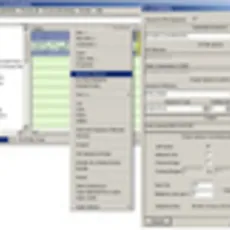
2. With your sequences selected : Right Mouse Button - Pulldown menu > Reformat Sequence Filename.
3. Set the Reformat options: name of the new merged sequence, the sequence type, padding etc.
4. Make sure copy is on. Note : Browse can place new sequence in new location if required.
5. Click OK.
A new sequence is created in the ListView which is the original sequences merged in your
selection order.

New merged sequence playing in the Sequencemaster player.
To merge sequences with SaveAs / Record (Batch convert and merge)
1. Select the sequences in the ListView in the order that you wish the sequences to merge.
Use shift or Ctrl to select multiple sequences.
2. With your sequences selected : Right Mouse Button - Pulldown menu > Save As /Record.
Set the Save As / Record options, the name of the new merged sequence, the image format, padding etc.
3. Click Record.
A new sequence is created in the listview which is the original sequences merged and batch converted.
In the example below three jpeg sequences have become test_merge.[0001- 0327] tif

New tif sequence merged from three jpeg sequences.